Get started · Guide
Connect an AI assistant
Connect Certrust to the AI assistant you already use, such as Claude or ChatGPT, and ask it in plain words to issue, find or check your certificates. Setting it up takes about two minutes and needs no technical knowledge.
1. What your assistant can do
Once connected, your assistant works with your organisation's Certrust account. You can ask it to:
- Issue certificates to one person, or to everyone on a list you paste or attach (up to 2,000 at a time).
- Find who received which certificate, and which ones have expired or been revoked.
- Check whether any certificate is genuine.
- Renew a certificate with a new expiry date, or revoke one if you allow it.
The assistant only does what you allow when you connect it, and only for your organisation.
2. Before you start
- Your Certrust plan: connecting AI assistants is included in the Pro and Enterprise plans .
- Your Certrust account: you need to be able to sign in to your organisation on Certrust.
- Your assistant: it must support custom connectors (also called MCP servers). Claude and ChatGPT do on many of their plans; check your assistant's settings.
- The address you will paste into your assistant:
https://api.certrust.app/mcp
3. Connect Claude
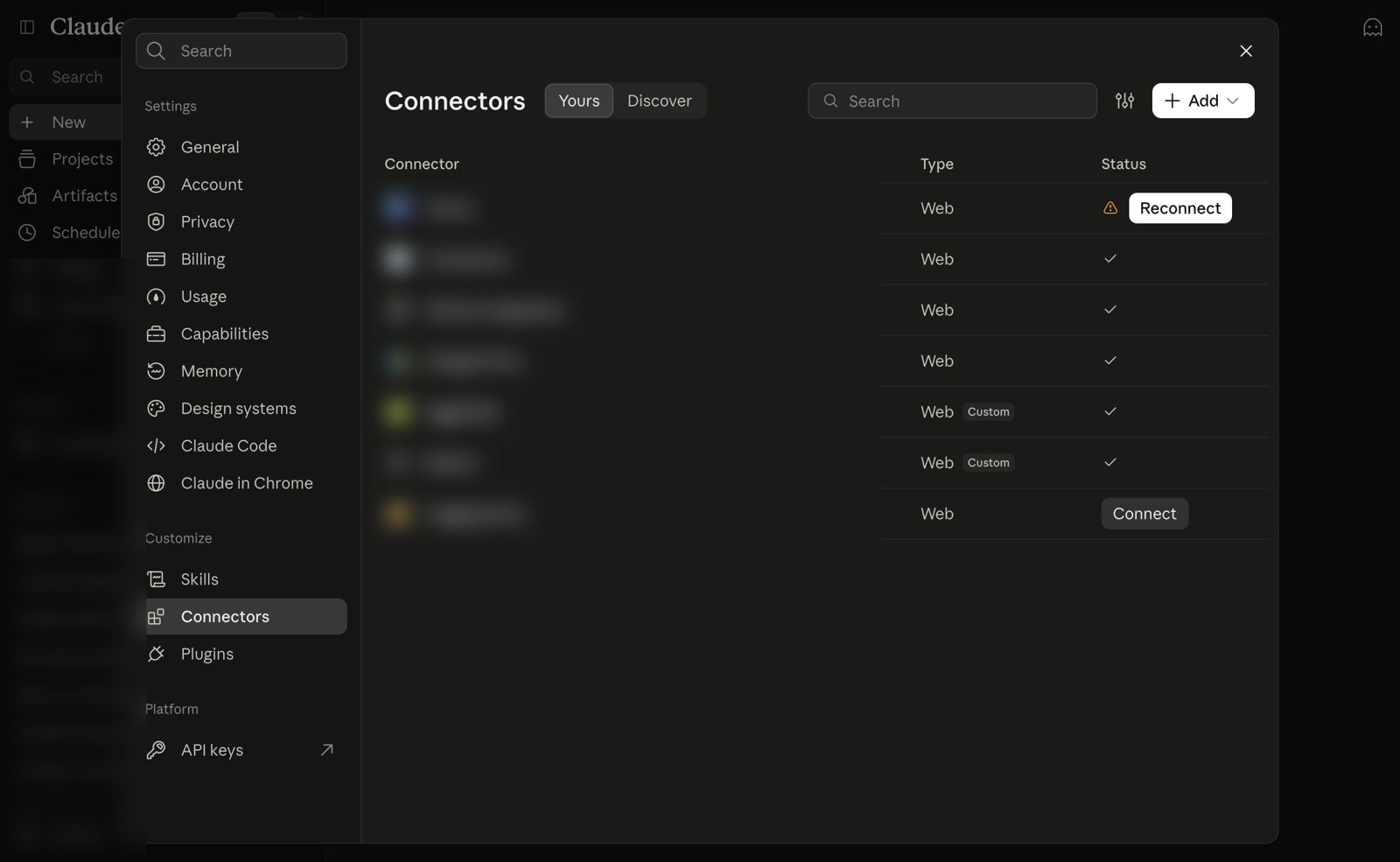
- On claude.ai or in the Claude app, open Customize, then Connectors. Select + Add, then Add custom connector.
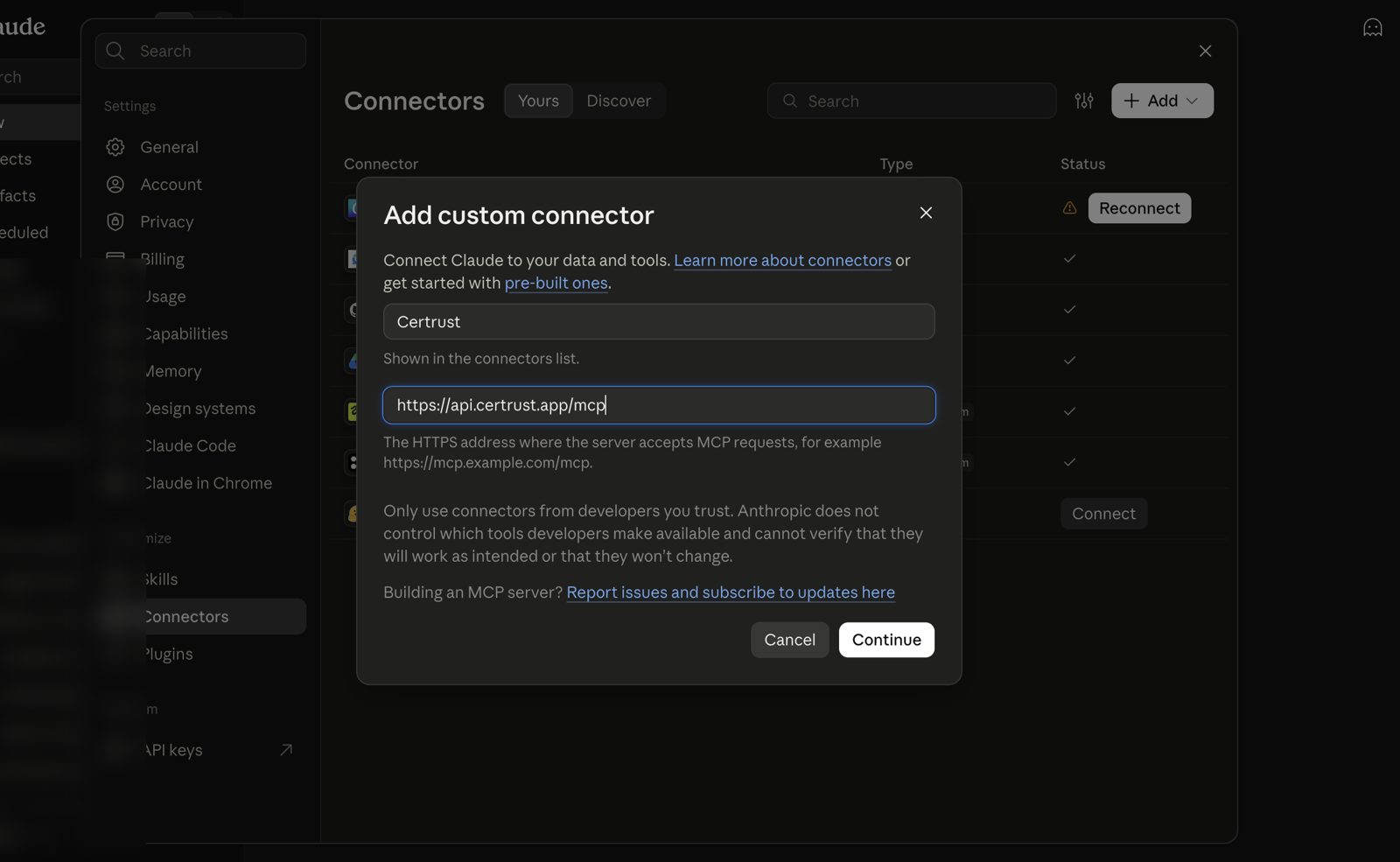
- Name it Certrust, paste the address
https://api.certrust.app/mcpand select Continue.
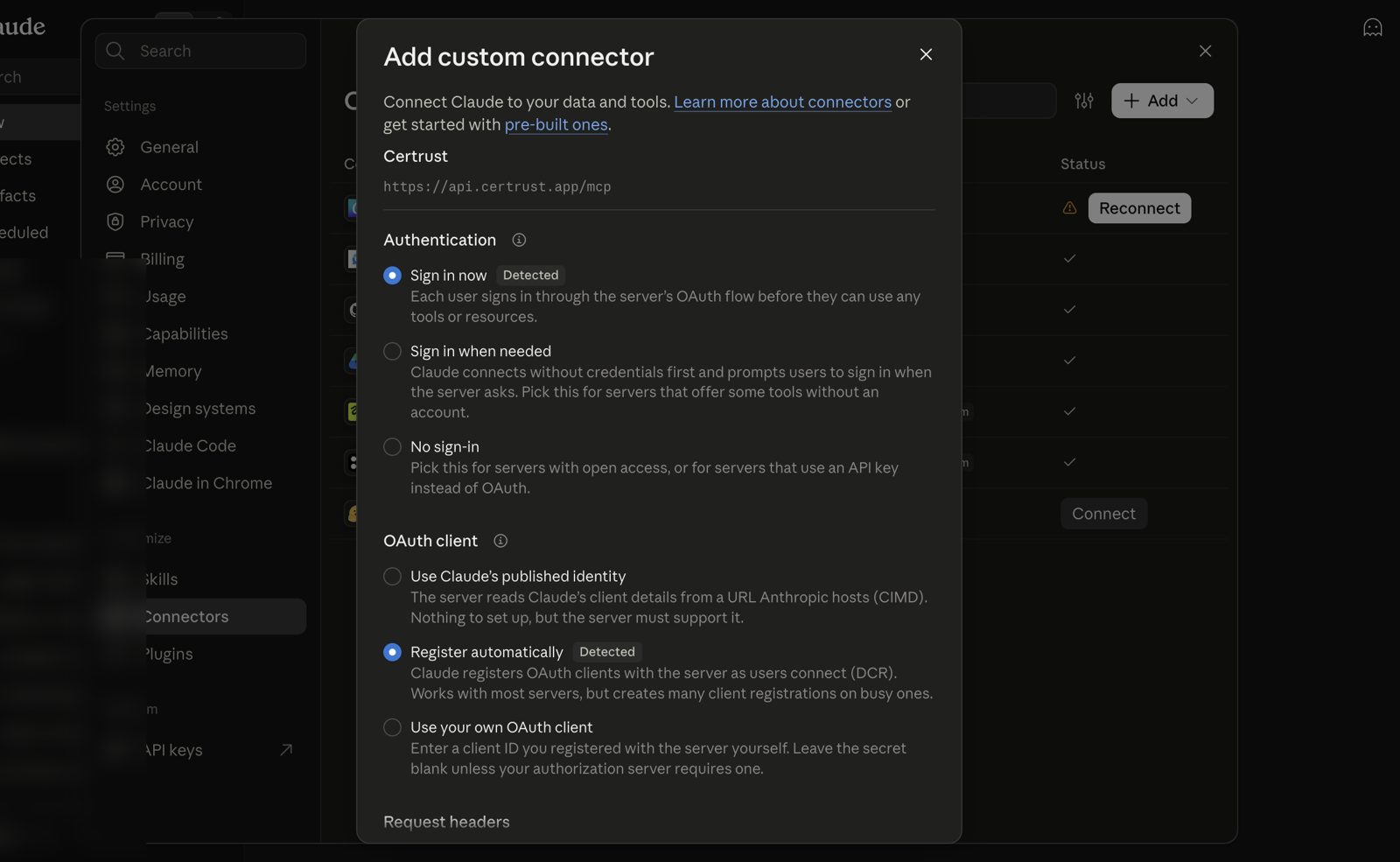
- Claude checks Certrust and picks the sign-in settings for you: Sign in now and Register automatically, both marked "Detected". Leave them as they are, scroll down and select Add.
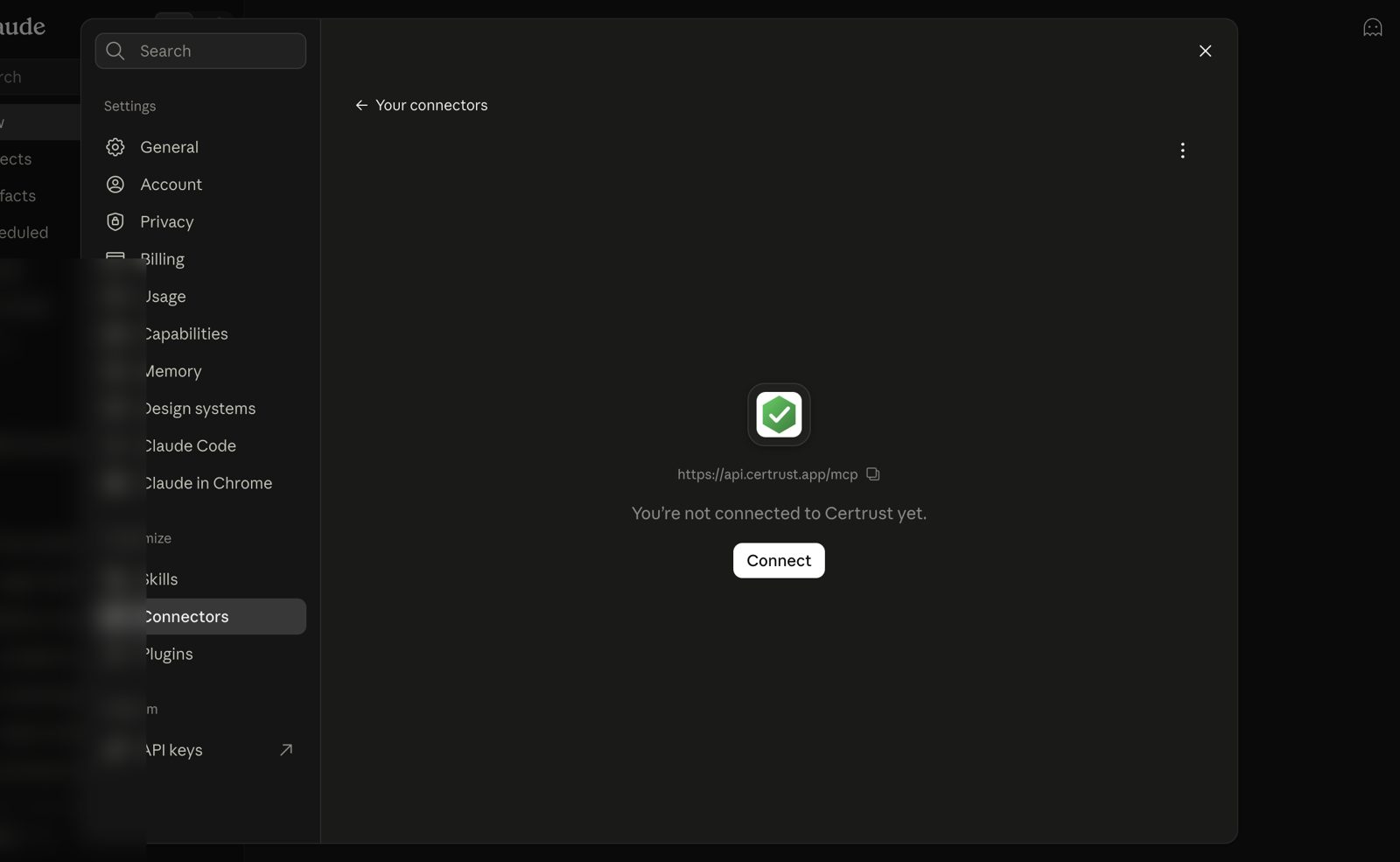
- Select Connect. A Certrust page opens. Sign in if asked.
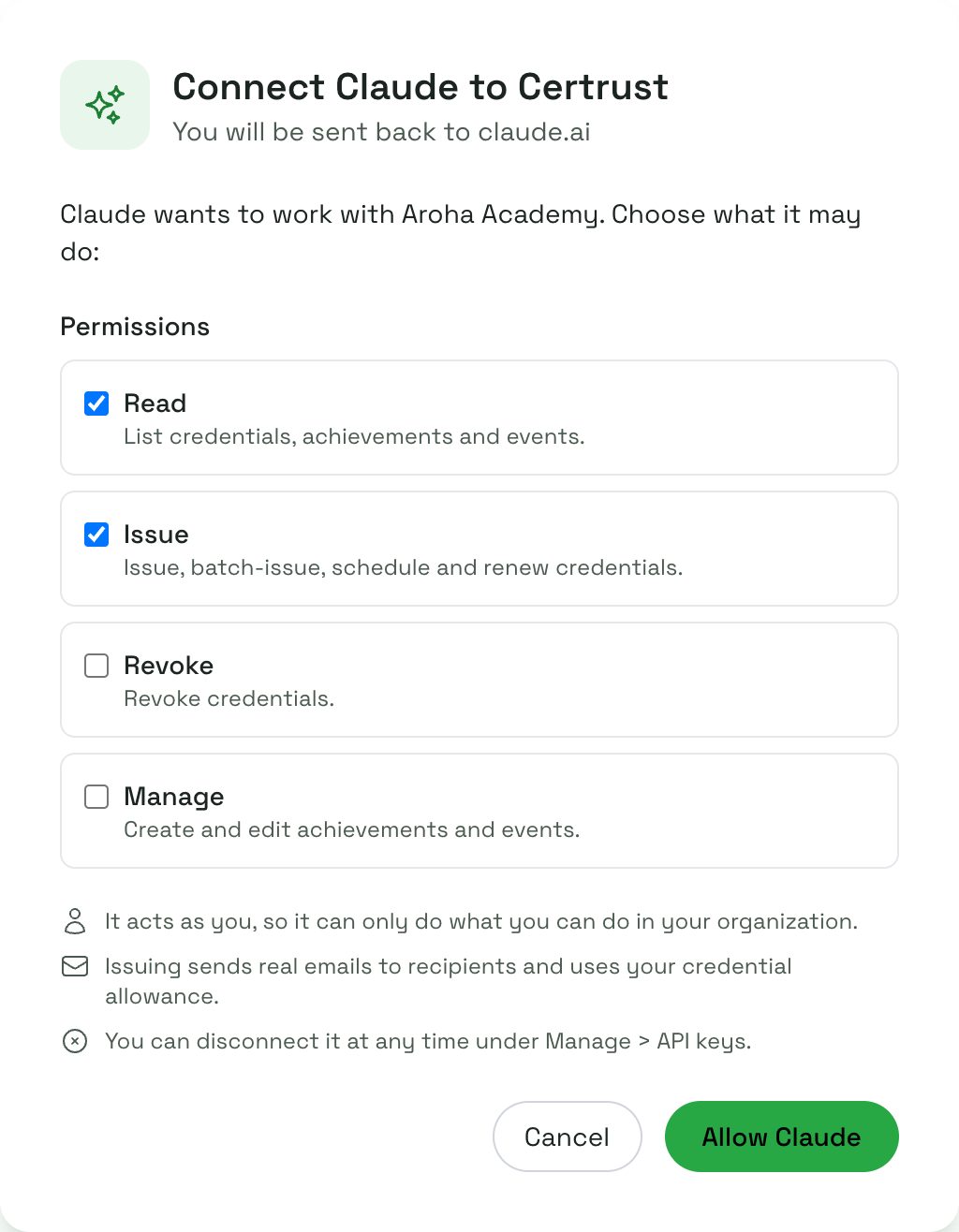
- Choose what Claude may do (see step 5) and select Allow Claude.
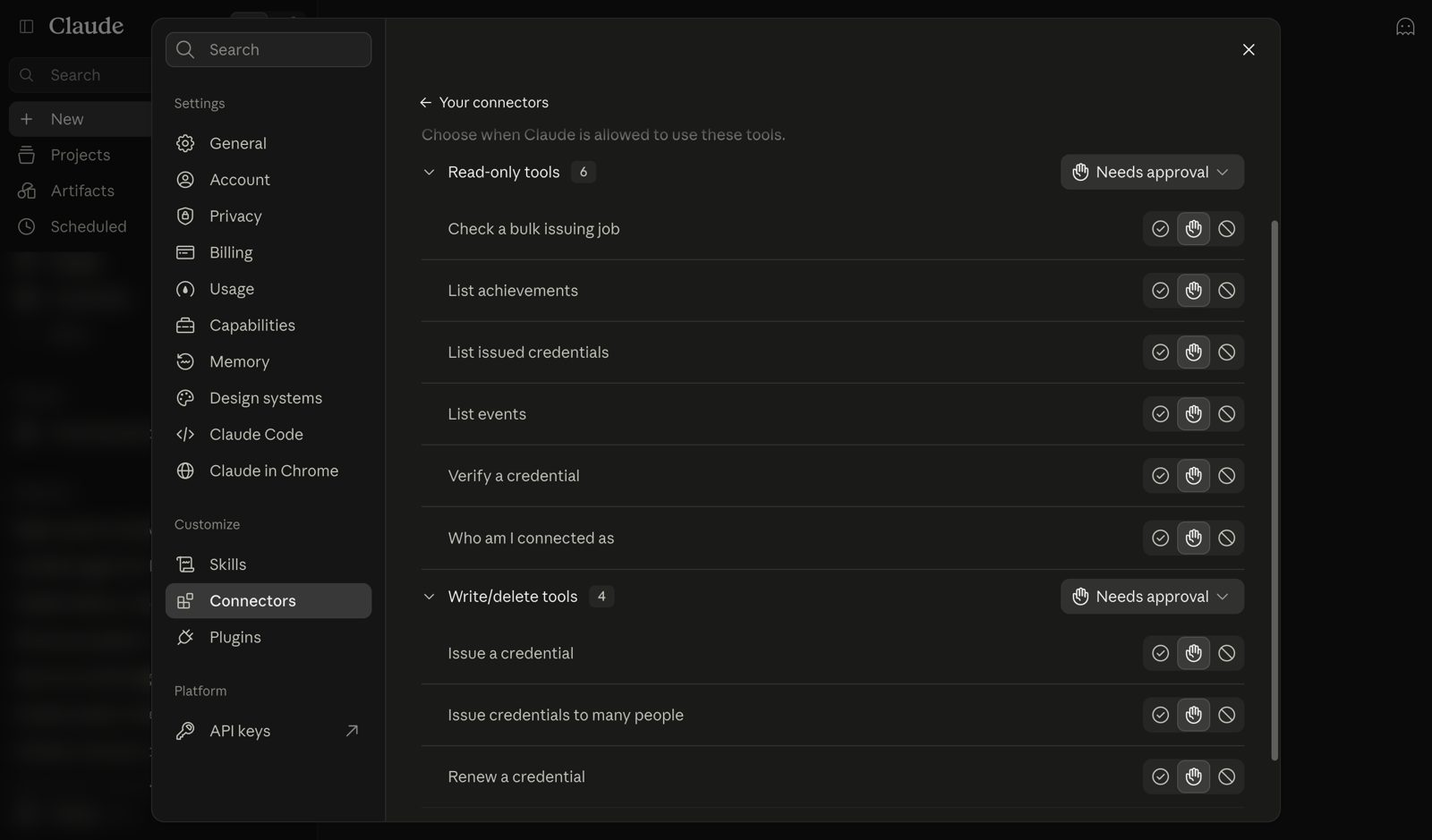
- You are taken back to Claude, which now lists the Certrust tools. By default Claude asks you before it uses each one.
4. Connect ChatGPT or another assistant
The steps are the same in any assistant that supports custom connectors:
- In your assistant's settings, find Connectors, Apps or MCP servers and add a new one. Some plans ask you to turn on developer mode first.
- Paste the address
https://api.certrust.app/mcp. If it asks how to sign in, choose OAuth. - Click Connect, sign in to Certrust, choose the permissions and click Allow.
Using a desktop app that is set up with a settings file instead (Claude Desktop, Cursor, VS Code)? Ask whoever manages your computers to follow the developer instructions ; they use an API key instead.
5. Choose what it may do
On the Certrust page you tick what the assistant may do. Start small: you can disconnect and connect again with more later.
| Permission | Lets the assistant | Tick it |
|---|---|---|
| Read | Look up your achievements, events and the certificates you have issued. | Always. The assistant needs it to find things. |
| Issue | Issue certificates to one person or a whole list, and renew them. | When you want it to send certificates for you. |
| Revoke | Cancel a certificate so it no longer verifies. This can't be undone. | Only if you really need it. |
| Manage | Create and edit achievements and events. | Rarely. Most people set these up on the website. |
The assistant acts as you: it can never do more than you can in your organisation, even with every box ticked.
6. Start using it
In a new chat, make sure Certrust is switched on (in Claude, in the tools or connectors menu under the message box), then just ask. For example:
- "Which achievements can we issue?"
- "Here is the attendee list from Friday's workshop. Issue everyone the "First Aid Basics" certificate."
- "Who received the Safety Induction badge this month?"
- "Is this certificate genuine? urn:uuid:…"
- "Renew Mere Tane's certificate until the end of next year."
- "How many certificates have we issued for the Leadership course, and are any expired?"
When Claude wants to issue, it shows exactly who will receive what and waits for you:
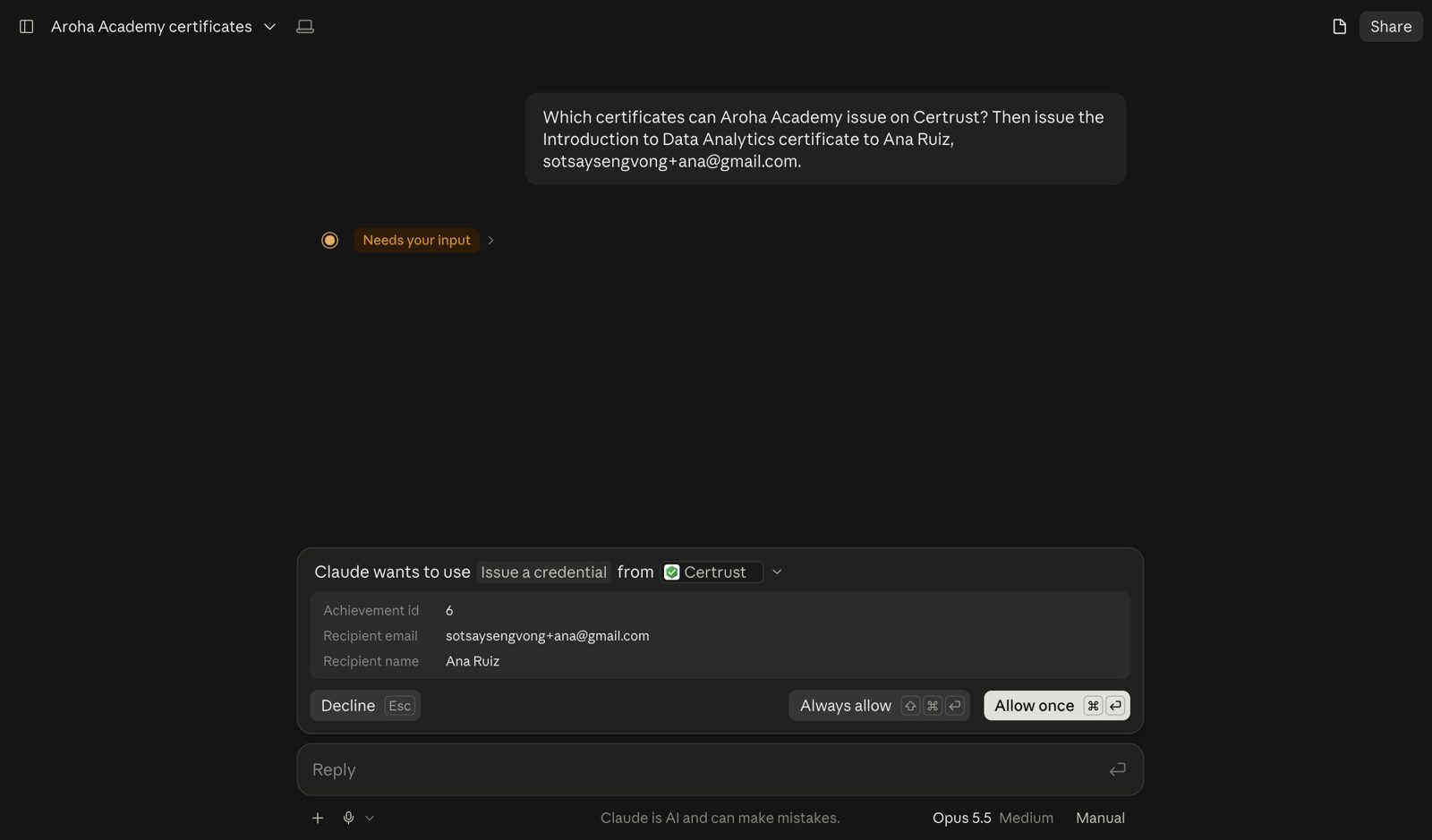
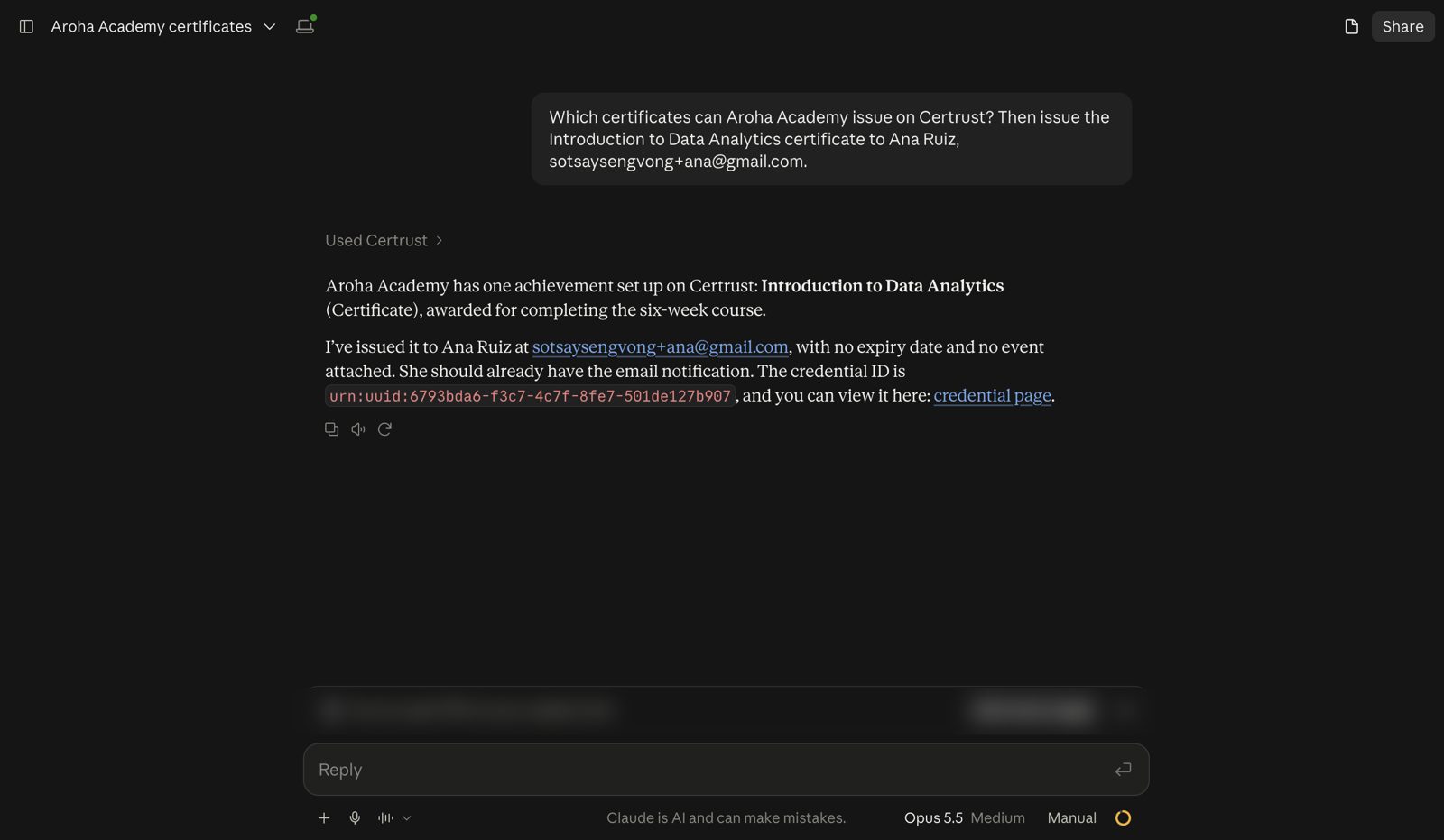
Select Allow once, and it confirms with a link to the certificate:
The assistant uses the achievements and events you have already set up in Certrust. Need a new course or certificate design? Create it on the website first (see Issue your first certificate ).
7. See and disconnect it
Every connected assistant is listed under Manage > API keys as a Connected app, with its permissions, who connected it and when it was last used.
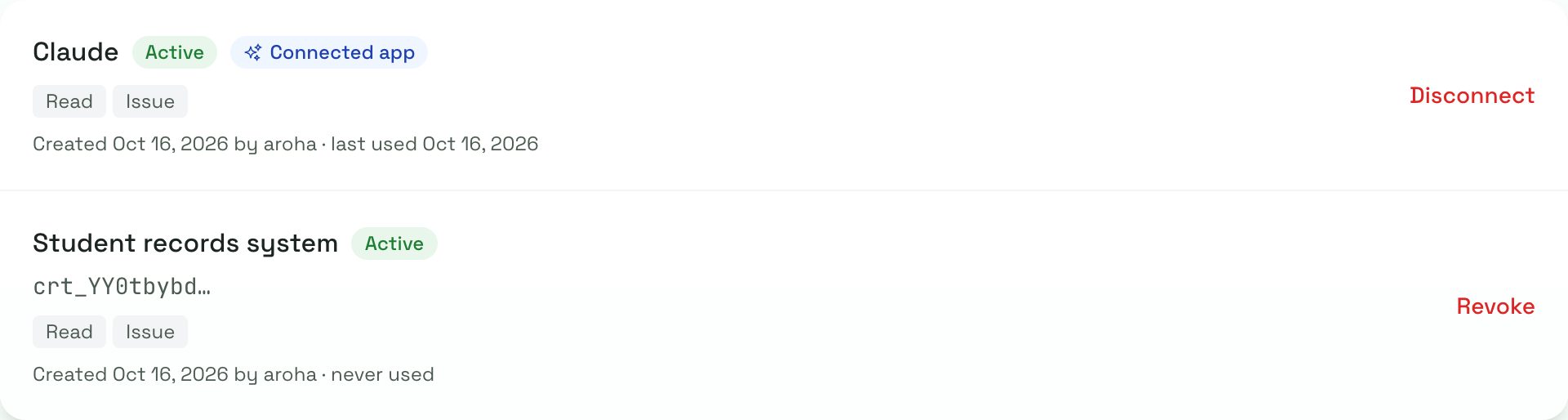
- Click Disconnect to cut it off straight away. To use it again, connect again from your assistant.
- A connection also stops if the assistant isn't used for 30 days, or if the person who connected it leaves your organisation.
- Everything the assistant does is recorded in Certrust's audit log under the app's name.
8. If something goes wrong
- "Connecting AI apps is included in the Pro and Enterprise plans": your organisation is on the Free plan. Upgrade , then connect again.
- "The app sent an unexpected return address" or "not registered": start the connection again from your assistant. If it keeps happening, remove the connector in your assistant and add it again.
- The assistant says it can't do something: it probably wasn't given that permission. Disconnect it, connect again and tick the permission.
- It stopped working: it may have been disconnected, unused for 30 days, or your plan changed. Connect again from your assistant.
- Too many keys: an organisation can have up to 20 API keys and connected apps. Disconnect ones you no longer use.
- Still stuck? Write to support@certrust.app.